Flashing MeshCore Firmware OTA: The Definitive Guide
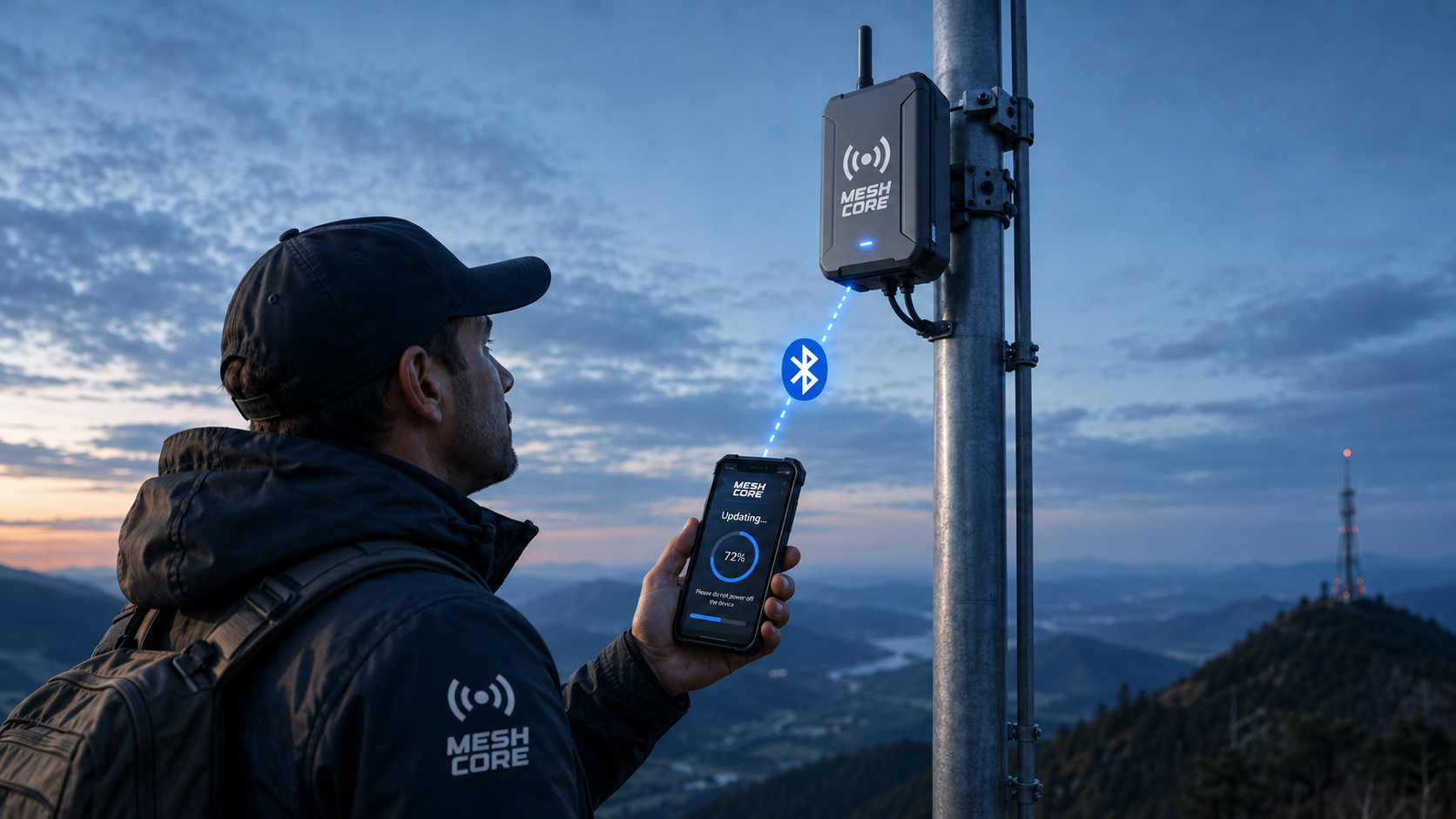
Step-by-Step: OTA Update
Over-the-air (OTA) updating lets you reflash a deployed MeshCore node; a repeater, room server, or companion, without connecting it to a computer over USB. The method depends on the board's chip family: nRF52 boards update over Bluetooth using Nordic's DFU app, while ESP32 boards update over a temporary Wi-Fi access point in your browser. Both are covered below, followed by notes specific to companions.
OTA is convenient for nodes that are hard to reach physically (a repeater on a roof or tower). If a node is within easy reach, a USB flash from flasher.meshcore.io is faster and more reliable than OTA. Reserve OTA for when getting a cable to the device is impractical.
nRF52 Boards
nRF52 boards (RAK4631, Heltec Mesh Node T114, Seeed XIAO nRF52840, and similar) update over Bluetooth LE using Nordic's DFU app. The same process works for repeater, room server, and companion firmware, only the firmware image differs (see the Companions section for the companion firmware-version requirement).
Browser Requirements
The WebSerial API is only available in Chromium-based browsers (the WebSerial API shipped in Chrome/Edge 89 - see MDN/Can I Use):
- Google Chrome (version 89 or later) - recommended
- Microsoft Edge (version 89 or later) - supported
- Firefox, Safari - NOT supported. WebSerial is not implemented in these browsers.
Mobile App Requirements
Download the nRF Device Firmware Update app (you can find it by searching nrf dfu in your app store).
Note: After installation, this app is listed as "DFU" in the apps list, NOT nRF Device Firmware Update.
- Android: https://play.google.com/store/apps/details?id=no.nordicsemi.android.dfu&hl=en-US
- iOS: https://apps.apple.com/us/app/nrf-device-firmware-update/id1624454660
Get the OTAFIX Bootloader
The OTAFIX bootloader (by oltaco: Huw "Taco" Duddy, a MeshCore firmware developer) replaces the stock nRF52 bootloader and makes Bluetooth OTA DFU far more reliable: significantly faster OTA, automatic fallback to OTA DFU mode if an update fails, and the ability to enter OTA DFU mode by holding a button while resetting. It is strongly recommended before doing OTA on nRF52 boards. You install it once, over USB.
- Visit flasher.meshcore.io
- Find your device and select the repeater firmware you run
- Look for the following message:
- We strongly recommend installing OTAFIX Bootloader by @oltaco for more reliable Bluetooth OTA DFU.

- Click the OTAFIX bootloader link to download the bootloader (the file is named something like
update-xxxx.uf2) - Place the device into DFU mode (on most nRF52 boards, double-press the RESET button, twice within about half a second). On the Seeed XIAO nRF52840, press RESET once first; if no drive appears, double-press quickly. The T1000-E and ThinkNode M3 use a magnetic-cable button sequence: see the device's own instructions.
- Verify the device shows up as a drive on your computer
- Windows: In Windows Explorer, look for a new device, such as HT-n5262 (G:)
- macOS: a new removable volume mounts on the desktop, named after the board (e.g. T114 or RAK4631)
- Drag and drop the downloaded bootloader file onto the new device
- The device will reboot and you can now flash the device OTA

Download firmware images to your mobile device
On flasher.meshcore.io, download the firmware image for the device you want to flash. For OTA with the DFU app, choose the DFU package (.zip) variant of the firmware (not the .uf2, which is for USB drag-and-drop).
Flash the Device OTA!
- Open the DFU/nRF Device Firmware Update app on your mobile device
- Find the device you want to flash in the list, tap it
- Select the firmware (the
.zippackage) for the device you want to flash - Ensure the correct device is selected
- Tap Start
Progress is slow. Ensure you have an unobstructed path to the device. External Bluetooth antennas help tremendously.
ESP32 Boards
ESP32 boards (Heltec V3, LilyGo T-Beam and T-Deck, Station G2, RAK11200, and similar) do not use the DFU app or Bluetooth for OTA. Instead, the device hosts a temporary Wi-Fi access point and you upload the firmware to it from a browser. You start this mode with a command, so you need admin access to the node in the MeshCore app.
Requirements
- The node must already be running a MeshCore firmware version that supports OTA. If it is on older firmware, do one USB flash from flasher.meshcore.io first, then future updates can be done OTA.
- A phone or laptop with Wi-Fi and a web browser.
- Admin access to the node in the MeshCore app (you issue the OTA command from its Command Line).
Get the firmware image
- Go to flasher.meshcore.io, select your device and the firmware you run.
- Download the non-merged
.binfile. Do not use the merged.bin: the merged image is only for first-time USB flashing and will not work for OTA.
Start OTA mode on the device
- In the MeshCore app, log into the node and open its Command Line.
- Send the command
start ota. - The device replies with an address such as
Started: http://192.168.4.1/updateand creates a Wi-Fi access point named MeshCore-OTA (depending on firmware it may appear as "MeshCore OTA").
Upload the firmware
- On your phone or laptop, connect to the MeshCore-OTA Wi-Fi network.
- Open http://192.168.4.1/update in a browser.
- Choose the non-merged
.binyou downloaded and start the upload. A progress bar tracks the flash. - When it finishes, the device reboots onto the new firmware and the MeshCore-OTA network disappears. Reconnect your phone/laptop to your normal Wi-Fi.
While in OTA mode the device's only job is hosting this upload page, so it is briefly off the mesh. Keep your phone or laptop close to the node for a stable Wi-Fi link.
Companions
A companion is the node you pair with the MeshCore phone app. Companion firmware updates OTA using the same mechanism as repeaters and room servers. The difference is the firmware image you flash and, on nRF52, a minimum firmware version.
- nRF52 companions (RAK4631, Heltec T114, XIAO nRF52840): update over Bluetooth with the nRF Device Firmware Update (DFU) app, exactly as in the nRF52 Boards section above. The node must already be running companion firmware v1.15 or later to update over OTA. If it is older, flash it once over USB from flasher.meshcore.io to reach v1.15+, after which future updates can be done OTA.
- ESP32 companions (Heltec V3, T-Deck, etc.): update over Wi-Fi using the
start otamethod in the ESP32 Boards section above.
The actual firmware transfer happens in Nordic's DFU app (nRF52) or on the Wi-Fi upload page (ESP32). There is no separate "update firmware" button inside the MeshCore app itself. As always, if the companion is in your hand, a USB flash is the simplest path.